Creating new data fields for Adaptable Workflow
The Adaptable Workflow configuration provides a common set of variables
Field definitions in the PowerShell script header are reflected on the Adaptable Workflow pages in Trust Protection Foundation
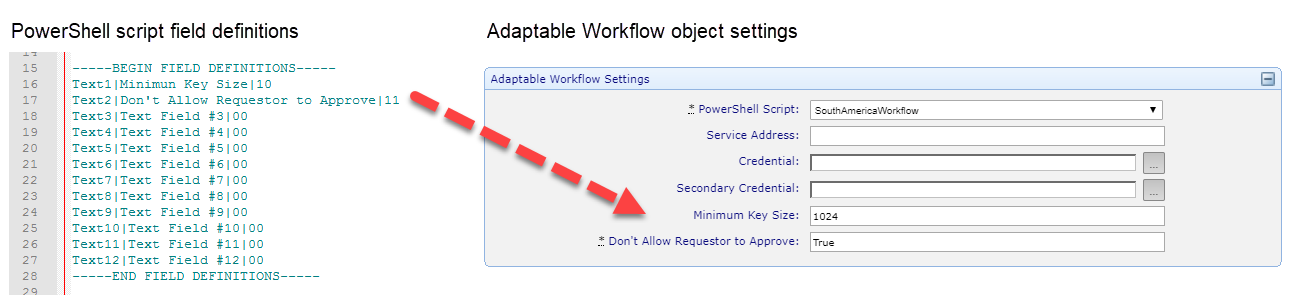
NOTE About macros: It's important to note that the Service Address field does not accept macros. You must use a custom field instead. Please be aware that certain macros are designed to function exclusively within workflows. Use the Macro Evaluator along with sample data to help you understand how macros will be processed for your use case.
Each field definition has three parts:
Field Name|Field Label|Flags
- Field Name: Must be
Text1through . Do not modify these values. - Field Label: Type the name that you want to appear on the Adaptable Workflow application object settings page.
- Flags: Using the numeric values of
0(to mean false) or1(to mean true) for each of the following options (in order):- Enabled: Use to enable or disable a field.
- Mandatory: Use to indicate whether the field must be completed, or is optional. When set to true, this option adds an asterisk (*) next to the field label to let the user know that it is a required field.
EXAMPLE Suppose you want to add a mandatory field for capturing the minimum key size (so you can automatically reject certificates using a key size smaller than specified). Using a text (or PowerShell script) editor, you would open your PowerShell script file (which must be in the drive:\Program Files\Venafi\Scripts\AdaptableWorkflow folder). You would then edit the field definitions in the header section to include a new field labeled <field name> and set values for the available flags:
----------BEGIN FIELD DEFINITIONS--------
Text1|Minimum Key Size|11
Text2|Text2|00
Text3|Text3|00
Text4|Text4|00
Text5|Text5|00
Text6|Text6|00
Text7|Text7|00
Text8|Text8|00
Text9|Text9|00
Text10|Text10|00
Text11|Text11|00
Text12|Text12|00
When you are finished, you save your changes to the PowerShell script. When you open Policy Tree, your new fields appear on the Adaptable Workflow objects.
IMPORTANT The header is required! The Powershell script will not work if the following header information is removed:
---- BEGIN FIELD DEFINITIONS ----
To create (or edit) Adaptable Workflow data fields
-
Open your Adaptable Workflow PowerShell file using a text (or PowerShell script) editor.
Adaptable Workflow PowerShell script files must be stored in the
\Venafi\Scripts\AdaptableWorkflow\folder. - Locate the Begin Field Definitions section and determine where you want to place your new field.
-
On the line where you want to define your new field, type the new field label and then set the appropriate flags.
For example:
- When you are finished, save the file and close it.
Your new field should appear on the Adaptable Workflow object page in Policy Tree.