Signing Android Packages with apksigner
Android requires that all APKs be digitally signed with a certificate before they are installed on a device or updated. When releasing using Android App Bundles, you need to sign your app bundle with an upload key before uploading it to the Play console.
There are 2 different types of keys used for Play App Signing:
-
App Signing Key – The key used by Google to sign the APK prior to release
-
Upload key and Certificate – A key and certificate used by the enterprise developer to sign the uploaded APK to the Play Console.
Google Play allows for two options when it comes to managing APK signing keys.
-
Google managed signing keypair using Play App Signing (for apps created after August 2021)
-
Customer-owned upload signing key and keystore
NOTE If you do not opt in to Play App Signing, it is possible to manage the app signing key. Keep in mind that with this approach, your app will not be able to support Android App Bundles, Play Feature Delivery, and Play Asset Delivery.
The apksigner tool, available in revision 24.0.3 and higher of the Android SDK Build Tools, lets you sign APKs and confirm that an APK's signature will be verified successfully on all versions of the Android platform supported by that APK.
Since Android packages are based on the Java framework, you can use jarsigner and PKCS#11 integration in Code Sign Manager - Self-Hosted. The diagram below shows how Google Play signing works with Code Sign Manager - Self-Hosted.
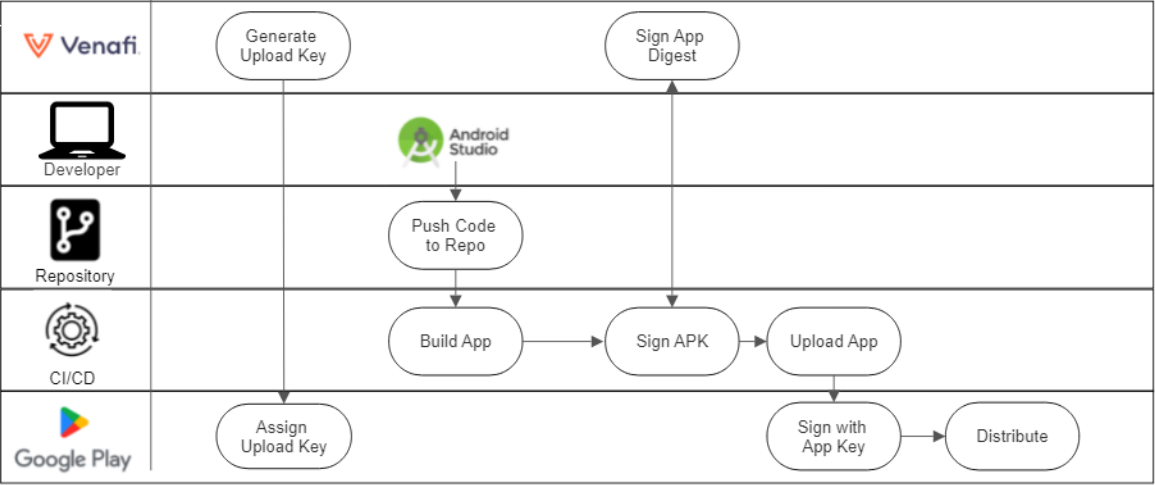
Pre-requisites:
-
Build/developer system
-
Code Sign Client
-
apksigner CLI (part of Android Studio)
To sign Android packages:
-
Generate upload key and certificate using Code Sign Manager - Self-Hosted.
-
Deploy and configure Code Sign Client on Android app build systems.
-
Sign APK with apksigner that is configured to leverage the Code Sign Manager - Self-Hosted PKCS#11 integration.
-
Run
pkcs11config listobjectsto list the signing keys that are available. For the one you want to sign with, copy theLabelvalue. Make sure to use the appropriate upload identity from step 1. -
Sign the Android package using the following command. Pass the Label value from the previous step in the
--ks-key-aliasargument.apksigner sign \ --ks NONE \ --ks-pass pass:ignoreme \ --provider-class sun.security.pkcs11.SunPKCS11 \ --provider-arg ~/venafipkcs11.txt \ --ks-type PKCS11 \ --ks-key-alias <Label> ~/test.apk
Sample PKCS#11 configuration file:
name = CyberArkPKCS11
library ="/opt/venafi/codesign/lib/venafipkcs11.so"
slot = 0
-
Install apksigner (on a debian-based system you can install using apt-get update; apt-get install apksigner )
-
Sign Android package:
-
-
Upload app to Google Play
-
Assign upload key to developer account
-
Generate App signing key
-
Create release – Google Play signs using App signing key
-
Distribute App