Global password rules
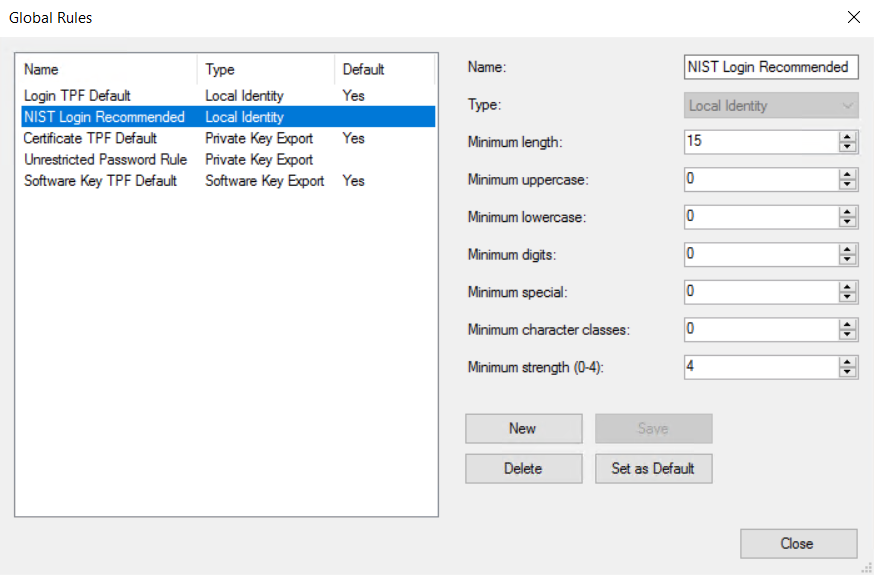
Trust Protection Foundation is pre-configured to use default global password rules. A global password rule is a named set of password requirements, such as the minimum length, the minimum number of each character type, and the minimum password strength. Global password rules replace the fixed password checks used in earlier Trust Protection Foundation releases. You can choose the requirements that match your organization's security policy, including guidelines such as NIST SP 800-63B.
You manage global password rules using the Trust Protection Foundation Configuration Console on the Trust Protection Foundation server.
Global password rule types and defaults
Each global password rule has a Type. You choose the type when you create a rule. The type controls which passwords the rule checks. Trust Protection Foundation includes a default rule for each type, so password checks work as soon as you install or upgrade:
| Type | Passwords the rule checks | Default rule (provided) |
|---|---|---|
| Local Identity | Passwords for local user accounts in Aperture and WebAdmin | Login TPF Default |
| Private Key Export | Passwords that protect certificate private keys when users download or export them | Certificate TPF Default |
| Software Key Export | The password an administrator enters when exporting the software encryption key | Software Key TPF Default |
Trust Protection Foundation also includes two more built-in rules that you can use instead of a default rule:
-
NIST Login Recommended: A Local Identity rule based on NIST password recommendations. To use it, set it as the default for the Local Identity type.
-
Unrestricted Password Rule: A Private Key Export rule that accepts any password. After an upgrade, policy folders that allowed simple passwords in earlier releases use this rule.
To see a rule's settings, log in to Trust Protection Foundation Configuration Console and click Configure Global Rules in the Actions panel.
Creating a global password rule
Trust Protection Foundation includes default global password rules, but you can also create and use your own. A new rule isn't used until you set it as the default for its type. You can also select a Private Key Export rule for a policy folder in the Policy Tree. For more information, see Policy object certificate settings.
To create a global password rule
-
Log in to the Trust Protection Foundation server.
-
Open the Trust Protection Foundation Configuration Console.
-
In the Actions panel on the right, click Configure Global Rules.
The Global Rules window opens.
-
Click New.
-
In the Name field, type a unique name for the rule.
-
In the Type list, select the rule type:
- Local Identity
-
Private Key Export
-
Software Key Export
NOTE You cannot change the Type after you save the rule.
-
Configure the numeric requirements for length and character composition:
NOTE All fields accept whole numbers. For every field except Minimum character classes, type 0 to turn the requirement off.
-
Minimum length: Type the minimum total number of characters.
-
Minimum uppercase: Type the minimum number of uppercase letters (A–Z or Unicode uppercase letters).
-
Minimum lowercase: Type the minimum number of lowercase letters (a–z or Unicode lowercase letters).
-
Minimum digits: Type the minimum number of digits (0–9).
-
Minimum special: Type the minimum number of special characters. Spaces count as special characters.
-
Minimum character classes: Type how many of the four character classes (uppercase, lowercase, digits, special) the password must meet. You can type 0 to 4.
-
1 to 4: The password must meet at least this many of the class minimums above. If it does, the other classes aren't checked.
-
0: The password must meet every class minimum above.
-
-
Minimum strength (0-4): Type the minimum password strength score. The system calculates the score with the zxcvbn password strength estimator.
-
0: Strength isn't checked.
-
1 to 4: The password must reach at least this score.
-
-
-
Click Save.
To use the new rule
-
In the Global Rules window, select the rule.
-
Click Set as Default.
The Default column shows Yes for this rule. It replaces the old default rule for that type.
-
If the rule type is Local Identity, recycle these application pools in IIS on every web server so the change takes effect:
-
Web Console (for Aperture and WebAdmin)
-
VEDWebSDK (for WebSDK)
You don't need to recycle application pools for Private Key Export or Software Key Export rules. Those changes take effect right away.
-