Performing agentless discovery of SSH keys on demand
While you can schedule agentless discovery, there are times when you want to quickly run an agentless discovery to find SSH keys on one or more devices.
Before you can scan a device to discover its SSH keys:
- Verify that the credential is set for the device. For more information see Configuring SSH folder options.
- Verify that the device has the Agentless Discovery and Remediation option set to Yes. For more information see Assigning work for agentless discovery
- Verify that you have an agentless group defined with the SSH Discovery Work option enabled, and matching membership criteria. For more information see Working with Client Group Settings.
Scan agentless devices for SSH keys
- From the SSH Manager menu, click Inventory, and then click Devices.
-
In Device Inventory, locate a device that uses agentless discovery.
Items with check boxes that appear dimmed are either not agentless, or are items that you don't have access to modify, so you can't select them.
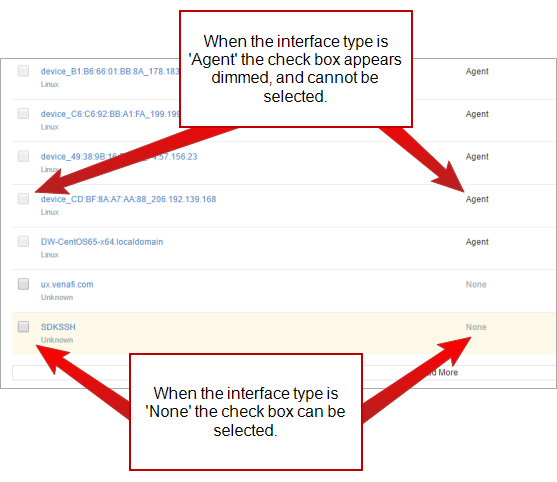
To select all agentless devices from the visible rows, select the check box in the column header.
-
Click Scan for SSH Keys.
The devices will be queued for discovery of SSH keys. Discovered keys are handled using whatever placement rules apply to that device.
-
Review the SSH Scan Status column to see the results of the scan.
If there is a failure, hover over the
 icon to see additional details about the failure.
Device Inventory columns: List of fields and descriptions. Field Name Description Name Includes both the device name as well as the operating system of the device. If there is a value in parenthesis, this indicates the Environment set for the device. SSH Trusts
Displays the number of incoming and outgoing SSH trusts established. (See Device Details, below, for more information.)
Interface
Indicates the interface used to interact with the device, if one exists. Options are Agent, Agentless, or None.
SSH Scan Status
Shows the results of the most recently-run SSH scan. If the status is Pending, the discovery is scheduled, but has not yet been started. If it doesn't start within 15 minutes, check that the SSHManager module is enabled on at least one engine that can process devices with Pending SSH Scan status.
Latest Update Shows the device connection and scan errors, if any. Risks
Indicates risks identified for the device.
NOTE A scan status of Completed means the discovery job finished running across target hosts. It does not guarantee that every key file was successfully read. If the scanning account encounters host-level permission or elevation errors (such as permission denied when reading /etc/ssh/sshd_config):
-
The system retains previously discovered keys and configuration data in the database rather than deleting them.
-
An error message appears in the Latest Update column.
-
If you see unexpected key inventory results or permission warnings, check the device activity logs and confirm that your discovery account has read and command privileges on the target server.
-
 Related Topics