Linking an existing code signing certificate to a Code Sign Manager - Self-Hosted Environment
If you have an existing code signing certificate in Trust Protection Foundation platform, you can link that certificate to a Code Sign Manager - Self-Hosted environment.
NOTE You can add existing certificates directly when creating a new environment using the Import Key from PKCS#12/PFX option. While that procedure allows you to import a key and bring it under management, this procedure allows to you link a key that is already recognized by Trust Protection Foundation to an existing Code Sign Manager - Self-Hosted environment.
In order to link a code signing certificate to an environment, the certificate must meet the following criteria:
-
Trust Protection Foundation manages both the private key and certificate object associated with the certificate
-
Not currently linked to any other application
-
Not disabled
-
Not currently used in any other Code Sign Manager - Self-Hosted environment
WARNING! Completing this procedure will delete the certificate that is currently used by the environment and replace it with the certificate you'll select later in these steps.
(Conditional) Create a Code Sign Manager - Self-Hosted environment
A certificate can only be linked to an existing Certificate & Key environment type. If the environment you want to link the certificate to already exists, you can proceed to Link code signing certificate to Code Sign Manager - Self-Hosted environment.
If the environment doesn't yet exist, you'll need to create one. See the Environments Tab instructions in Creating Code Sign Manager - Self-Hosted Projects.
DID YOU KNOW? When you create a new Certificate & Key environment, a certificate object is automatically generated. Linking a different certificate to that environment replaces that existing certificate object with the certificate you are linking.
Link code signing certificate to Code Sign Manager - Self-Hosted environment
-
Open the Policy Tree by going to https://tpp-server-address/vedadmin.
-
In the Policy tree, navigate to the code signing certificate you want to link to a Code Sign Manager - Self-Hosted environment.
-
Click the Support tab, and then click the Code Signing Environments tab.
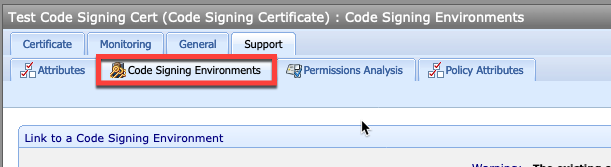
If the certificate is unavailable for linking, see the criteria listed above.
-
Click the Code Signing Environment field to open a list of Code Sign Manager - Self-Hosted environments.
-
Select the environment you want to link the certificate to.
-
Click Select, and then click Save.