MSCA—certificate settings
When you define a CA template object, you provide the information Trust Protection Foundation needs to connect to the CA. However, when you associate a CA template object with a specific certificate object, you can define additional settings that are specific to the certificate. These settings are passed to the CA when Trust Protection Foundation renews the certificate.
The MSCA template lets you enable the specific end date feature, which lets users specify expiration (end) dates for certificates requested from the CA so that they do not expire during known freeze periods.
IMPORTANT The end date you specify is ignored if it exceeds the validity period configured by the Microsoft CA administrator.
TIP To use the Allow Users to Specify End Date feature, you might need to enable the EDITF_ATTRIBUTEENDDATE flag on the CA, which is typically done using the certutil command-line tool:
certutil -setreg policy\EditFlags +EDITF_ATTRIBUTEENDDATE
You would then restart the certsvc service.
For more information, refer to the following Microsoft articles:
- https://support.microsoft.com/en-us/kb/254632
- https://msdn.microsoft.com/en-us/library/cc226763.aspx
You can verify Microsoft CA settings by entering the following at a command prompt:
certutil -getreg policy\EditFlags
To enable and configure specific expiration dates for your MSCA certificates
- From the Platform menu bar, click Policy Tree and either create a new Microsoft CA template, or open an existing Microsoft CA template.
- In the Options box, select the Allow Users to Specify End Date check box.
- When you finish making any other changes to the template, click Save.
- In the Policy tree, either create a new certificate object or open an existing certificate object.
-
In the Other Information box, select the CA template you edited in a previous step.

NOTE When you select a CA template where you have enabled the end date option, then the Microsoft CA Settings box appears.
The box does not appear on the certificate object page unless you have enabled the option in the CA template you select.
-
In the Microsoft CA Settings box, select Specify End Date from the Certificate Validity list.

-
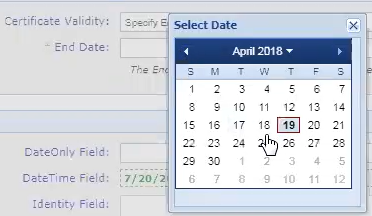
Click the End Date field and choose an expiration date from the pop-up calendar for certificates requested from the CA so that they don't expire during your known freeze periods.
- When you finish making any other changes to the certificate object, click Save.
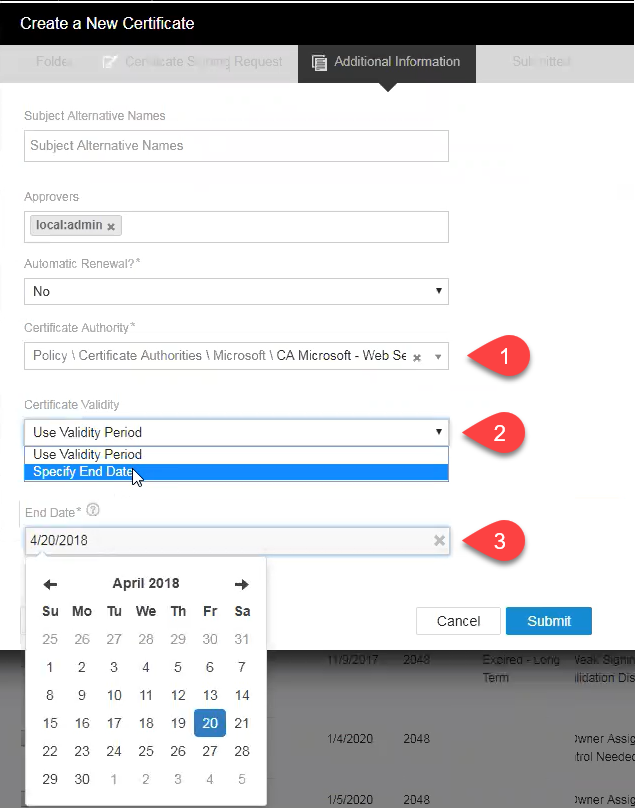
DID YOU KNOW? You can also select the CA template and configure the end date from main Certificate Manager - Self-Hosted interface, either on the Additional Information page of Renewal Details, or when creating a new certificate:
 Related Topics