Assigning object permissions in the Policy Tree
In Trust Protection Foundation, all administrative permissions are managed at the object level. Every encryption system object—folders, Credentials, Workflows, CAs, Devices, Applications, Certificates, Notifications, Channels, Logging Applications, Discoveries, and Discovery Surveys—has a Permissions tab. From an object's Permissions tab, you select the users or groups to whom you want to give permissions to the current object (and its subordinate objects). And then you select which permissions you want those users or groups to have. Because permissions flow down the tree, assigned permissions are also inherited by subordinate objects.
To assign permissions to an object i the Policy Tree
-
From the Platform menu bar, click Policy Tree.
IMPORTANT You must have the View and Admin permissions to assign object permissions.
- Select the object you want to grant permissions to.
-
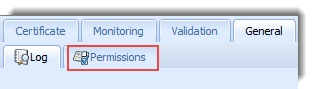
Click the General > Permissions tab.
-
Click Add.
If the Identity Selector dialog is not populated, enter a search query to retrieve the Identity list. Because some external directories are very large and may take a long time to load, the Trust Protection Foundation Administration console do not automatically display external users and groups. You must first enter a search string so Trust Protection Foundation can query the external user directory and return the list of requested users or groups.
-
Select a User or Group Identity, and then click Select.
Press Shift+click to select multiple, contiguous users and groups.
Press Ctrl+click to select multiple, discontiguous users and groups.
-
Select the permissions you want the User or Group Identity to have, and then click Apply/Save.
NOTE Permissions assignments are updated the next time the affected user logs in. The exception is in Policy Tree on the Pending Approvals pages.
For information on viewing permissions in the Aperture console see About permissions.