Run and monitor SSH discovery progress
This topic describes how to monitor the SSH discovery progress once the process is started in the Trust Protection Foundation. The SSH discovery and remediation process for devices that have no Agent installed is slightly different than a device that has an Agent running as the Agentless devices cannot initiate the scans themselves.
For Agentless devices (including devices configured through Adaptable SSH Key Discovery), SSH Manager initiates the SSH discovery and remediation process. The discovery and remediation schedule is set up during work configuration for a particular group of devices under Groups. The discovery process runs at set scan intervals of thirty minutes, hour, daily, weekly, monthly, or on receipt.
If you have set the On receipt requires a restart of the Palo Alto Networks Trust Protection Foundation service.
To view the scheduled times and monitor progress of the SSH scans:
-
From the SSH Manager menu, click Inventory > Devices.
- In the Device Inventory list, locate the device whose Interface is set to Agentless.
-
Click on the device Hostname/Address to open device details.
The scheduled scan bar is displayed.

-
When the scanning occurs, you can see the progress bar showing the progress of the scan.

NOTE See Running an SSH discovery: finding devices and SSH keys and How SSH key processing works for details on how keys are discovered and remediated.
-
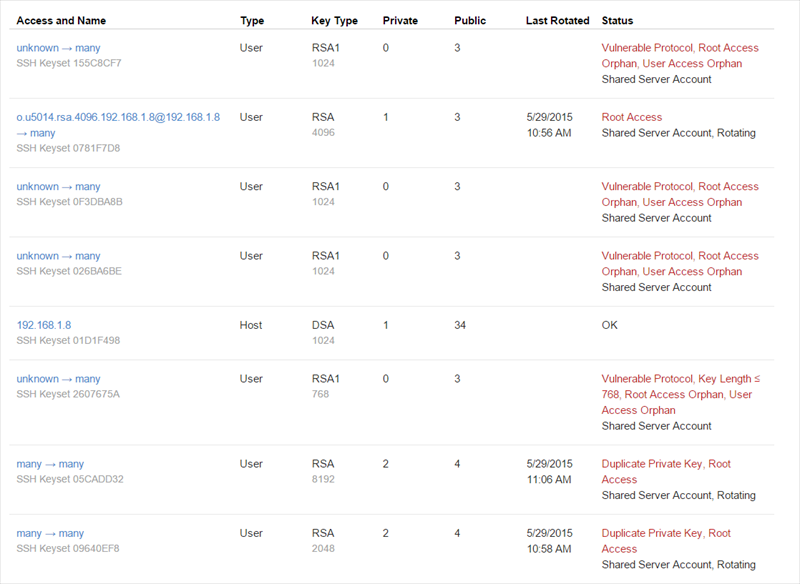
Finally, you will see the results of the SSH keys in the Agentless devices listed under Inventory > SSH Keys.
Diagnosing agentless discovery and permission errors
If an agentless scan completes with warnings, or if keys from a target server do not appear in the inventory, check the device activity log. The system logs each command and file-read step during the discovery process.
To view discovery logs for a device:
-
In the Web Console, go to Inventory > Devices.
-
Click the name of the device you want to investigate.
-
Open the Activity Log tab (or History).
-
Review the log entries from the most recent scan.
Understanding step-by-step command log entries
During discovery, the system runs specific commands on the target host to locate, copy, and read configuration and key files. The log records each step:
-
Command execution: Shows the exact command sent to the server (for example, cp, chmod, stat, grep, or sha256sum).
-
Byte count and file read status: Shows whether the system successfully read the file contents (such as /etc/ssh/sshd_config).
-
Exit codes and error messages: Shows the exact response from the remote operating system if a step fails.
| Log message / Indicator | What it means | Recommended action |
|---|---|---|
| Permission denied or SFTP status: PermissionDenied | The discovery service account logged in, but it does not have read access to the target file or directory (for example, /etc/ssh/sshd_config or /root/.ssh/). | Check file system permissions on the target server. Grant the discovery account read access, or configure sudo elevation rules for this account. |
|
Elevation failed or sudo: a password is required |
The discovery account tried to run an elevated command, but the server blocked the command or asked for a password. |
Update the /etc/sudoers file on the target host. Ensure the discovery account has NOPASSWD permissions for the required commands (cp, chmod, stat, rm, ls, grep, sha256sum). |
|
No such file or directory or SFTP status: NoSuchFile |
The file path configured for sshd_config or an authorized key file does not exist on the target host. |
Verify the SSH daemon configuration path on the target server. If the file was moved or deleted, update the device settings in SSH Manager. |
|
Connection lost or No connection |
The network connection dropped during file transfer or command execution. |
Check network stability, firewall rules, and SSH timeout settings between the engine and the target host. |
NOTE If you resolve permission issues on the target host, run a new scan from Inventory > Devices by selecting the device and clicking Scan for SSH Keys. When the scan succeeds, the latest configuration and key inventory update automatically.
 Related Topics